Apple first introduced Picture-in-Picture (PiP) in tvOS 13 back in 2019, letting you shrink any playing video into a floating thumbnail while you explore other apps. Six years later, tvOS 26 keeps the core controls intact but layers them beneath Apple’s new “Liquid Glass” interface.
The redesign dims menus and translucently floats system panels so your PiP window never gets covered, even when you pop into Control Center or queue up another show.
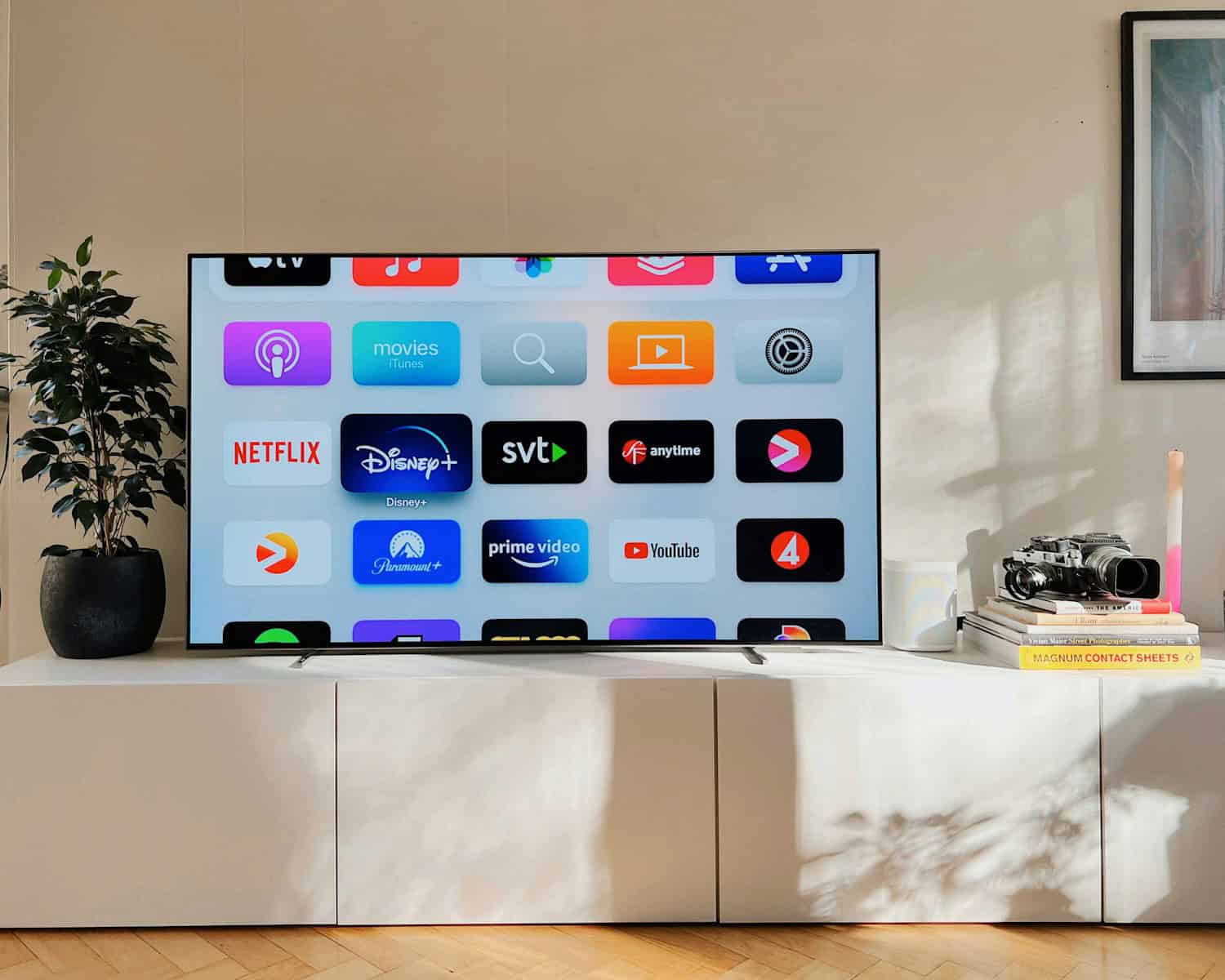
Good to know:tvOS 26 runs on every Apple TV 4K model and the aging Apple TV HD, but the slick Liquid Glass overlays only appear on second- and third-generation 4K boxes.
PiP vs. Multiview—Which One Do You Need?
Compatible Apps in 2025
*Disney+ pauses PiP support during Dolby Vision titles—switch to HDR or SDR if you need the thumbnail.
How to Launch PiP in Seconds
Power Tips You’ll Actually Use
Troubleshooting at a Glance
Beyond Video: Creative Ways to Use PiP
With tvOS 26 smoothing out the UI and Multiview handling sports overloads, Picture-in-Picture remains Apple TV’s simplest—and still unmatched—multitasking trick. Dive in, experiment with corner placement, and let nothing interrupt your showtime again.
Understanding Picture-in-Picture on Apple TV
Picture-in-Picture (PiP) on Apple TV enhances your viewing experience. This feature lets you watch videos while using other apps or browsing content.
Fundamentals of Picture-in-Picture Feature
Picture-in-Picture allows you towatch a video in a small windowwhile navigating other apps on your Apple TV. The video continues playing in a corner of the screen as you explore other content. You can resize and move the PiP window to suit your preferences.
To activate PiP, press the TV button on your Siri Remote while watching a video. The video shrinks to a small window, letting you access the Home screen. You can then open other apps or browse content while keeping an eye on your video.
PiP works with many popular streaming apps. Some apps may require additional steps to enable this feature.
Supported Devices and Operating Systems
Picture-in-Picture is available on Apple TV HD andApple TV 4K running tvOS 13 or later. The feature received significant improvements in tvOS 14, expanding its compatibility with more apps.
Here’s a quick overview of PiP support:
PiP on Apple TV works seamlessly with the Apple TV app. It also supports many third-party video apps. The feature integrates well with other Apple devices, allowing you to start watching on your iPhone or iPad and continue on Apple TV with PiP.
Activating Picture-in-Picture Mode
Apple TV’s picture-in-picture (PiP) feature lets you watch videos while using other apps. This handy tool keeps your content visible in a smaller window as you multitask.
Using the Siri Remote for PiP
TheSiri Remoteoffers a quick way toenable picture-in-pictureon your Apple TV. Start by playing a video in theApple TV app. Rest your finger on the Siri Remote’s touch surface to display playback controls. Look for the PiP icon – it looks like two overlapping rectangles.
Select this icon to shrink your video into a smaller window. you’re able to now open other apps while your video continues playing. To move the PiP window, use the touchpad to drag it to a different corner of the screen.
Want to return to full-screen? Simply select the PiP window and press the touchpad.
Menu Navigation for Enabling PiP
If you prefer menu navigation, you’re able to still access PiP mode easily. While your video is playing, press the Menu button on your Siri Remote. This action brings up the video player interface.
Use the touchpad to scroll down to the “Info” panel. Here you’ll find various options, including thePiP toggle. Select it to activate picture-in-picture mode.
Remember, not all apps support PiP. But for those that do, this feature enhances your viewing experience significantly.
Compatibility and Functionality
Picture-in-Picture (PiP) on Apple TV offers versatile options for multitasking while watching content. This feature works with various apps and provides controls for managing multiplevideo streams.
Apps Compatible with Picture-in-Picture
Apple TV’s PiP featureworks with several popular streaming services. You can use it with Apple TV+, HBO Max, and Disney+. Some othercompatible appsinclude:
Not all apps support PiP yet. You may find that some of your favorite streaming services haven’t added this functionality. Apple Arcade games don’t typically work with PiP due to their interactive nature.
To check if an app supports PiP, look for the PiP icon when playing a video. It appears as two overlapping rectangles.
Interacting with Multiple Video Streams
PiP lets you watch two video streams at once on your Apple TV. Here’s how you can manage them:
The first video will shrink to a corner of your screen. You can then start another video in full-screen mode.
To switch between streams:
You can also move the PiP window to different corners of your screen. Just swipe on the touchpad to reposition it.
Audio and Video Controls within PiP
PiP mode on Apple TVoffers several controls for both audio and video:
Audio Controls:
Video Controls:
These controls let you customize your viewing experience. You can focus on one stream while keeping an eye on another or balance both equally.
Enhanced Viewing and Multitasking
Apple TV’s Picture-in-Picture (PiP) feature boosts yourviewing experience. It lets you watch content while performing other tasks on your device.
Managing Multitasking with PiP
PiP on Apple TV enhances multitasking capabilities. You canenable PiPby resting your finger on the Siri Remote’s touch surface during video playback. This moves the current video to a small window in the corner of your screen.
While using PiP, you can:
PiP works with many popular streaming apps. You can resize the PiP window by swiping on the remote’s touchpad. To exit PiP mode, select the video window and choose the full-screen option.
Using Apple TV for Smart Home Integration
Apple TV serves as a hub for HomeKit, Apple’s smart home platform. This integration allows you to control connected devices while watching content.
Key benefits include:
To set up HomeKit integration:
This setup enables you to access HomeKit controls through the Control Center on your Apple TV remote.
Frequently Asked Questions
Picture in Picture on Apple TV offers convenient multitasking. Here are answers to common questions about this feature.
How can I enable Picture in Picture on Apple TV?
Toenable Picture in Pictureon Apple TV, start a video in a compatible app. Rest your finger on the Siri Remote’s touch surface. Select the Picture in Picture icon above the progress bar.
What apps support Picture in Picture on Apple TV?
Many popular streaming apps support Picture in Picture. These include Apple TV+, Disney+, and Hulu. Some apps may require updates to enable this feature.
Why is Picture in Picture not working on my Apple TV?
If Picture in Picture isn’t working, check your tvOS version. Ensure you’re using tvOS 13 or later. Verify the app you’re using supports the feature. Restart your Apple TV if issues persist.
Can I use Picture in Picture with YouTube on Apple TV?
YouTube doesn’t officially support Picture in Picture on Apple TV. However, someworkarounds existto use this feature with YouTube content.
Is it possible to use Picture in Picture for Netflix content on Apple TV?
Netflix currently doesn’t support Picture in Picture on Apple TV. This limitation applies to the Netflix app on the platform.
How does AirPlay interact with Picture in Picture on Apple TV?
AirPlay works with Picture in Picture on Apple TV. you may stream content from your iPhone or iPad to your Apple TV. The streamed video can then be put into Picture in Picture mode.
