If you’re having trouble with your Apple Watch not accurately tracking your sleep, don’t worry! This troubleshooting guide will help you identify and resolve common issues. We’ll walk you through steps such as confirming sleep tracking is enabled, checking for software updates, and addressing sensor issues. By following these troubleshooting steps, you’ll be able to get the most out of this valuable feature and start monitoring your sleep with accuracy again in no time.
To ensure that your Apple Watch accurately tracks your sleep, make sure that sleep tracking is enabled on both your iPhone and Apple Watch. In the Health app on your iPhone, go to Sleep and make sure that “Set Up Sleep” is complete. In the Watch app, navigate to My Watch, then Sleep, and ensure that “Track Sleep with Apple Watch” is turned on.
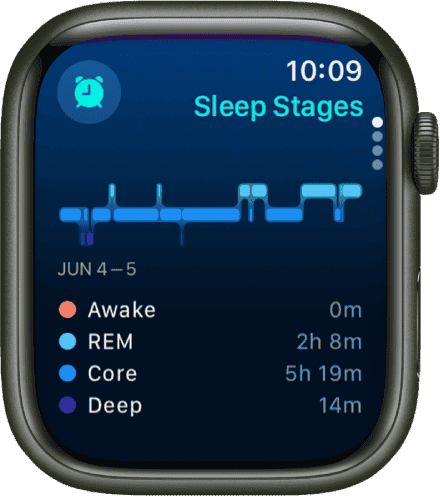
Troubleshooting Your Apple Watch Sleep Tracking
Troubleshooting Sleep Tracking Issues
The Apple Watch’s sleep tracking feature provides valuable insights into your sleep patterns, but it can sometimes encounter hiccups. If your Apple Watch isn’t accurately tracking your sleep, don’t worry! Here are some troubleshooting tips to help you get back on track:
Confirm Sleep Tracking is Enabled
Ensure that sleep tracking is enabled on both your Apple Watch and iPhone. Open the Health app on your iPhone, navigate to the Browse tab, tap on Sleep, and then tap on Get Started. Follow the prompts to set up your sleep schedule and enable sleep tracking.
Check for Software Updates
Outdated software can sometimes lead to glitches and bugs. Make sure that both your Apple Watch and iPhone are running the latest versions of watchOS and iOS. you may check for updates in the Settings app on your iPhone and in the Watch app on your iPhone.
Restart Your Devices
A simple restart can often resolve minor software issues that may be affecting sleep tracking. Restart both your Apple Watch and iPhone to see if it fixes the problem.
Wear Your Watch Properly
Ensure that your Apple Watch is snug but comfortable on your wrist. A loose fit can prevent the sensors from accurately detecting your sleep patterns. Also, make sure the back of the watch is in contact with your skin.
Charge Your Watch
A low battery can interfere with sleep tracking. verify your Apple Watch has enough charge to last through the night. It’s recommended to charge it to at least 30% before going to bed.
Check for Sensor Issues
If none of the above solutions work, there might be an issue with the sensors on your Apple Watch. you’re able to check the sensor status by opening the Settings app on your Apple Watch, tapping on General, then tapping on About, and scrolling down to Sensor Diagnostics. If you see any errors, contact Apple Support for further assistance.
Additional Tips
Here are some additional tips to improve the accuracy of your sleep tracking:
Common Sleep Tracking Issues and Their Solutions
The following table outlines some common sleep tracking issues and their potential solutions:
By following these troubleshooting tips and solutions, you can ensure that your Apple Watch accurately tracks your sleep and provides you with valuable insights into your sleep patterns. If you continue to experience issues, don’t hesitate to contact Apple Support for further assistance.
Check Your Settings
First ensure that sleep tracking is enabled on both your iPhone and Apple Watch. On your iPhone, go to the Health app, then Sleep, and confirm that “Set Up Sleep” is complete. In the Watch app, go to My Watch, then Sleep, and check that “Track Sleep with Apple Watch” is on.
Verify Your Schedule (If Applicable)
If you use a sleep schedule, verify it’s set up correctly in the Health app under Sleep. If you manually activate Sleep Focus, ensure it’s on for at least 4 hours.
Make sure your Apple Watch has enough battery to last through the night. It won’t track your sleep if it dies while you’re asleep.
Other Potential Fixes
If you’ve tried these steps and your Apple Watch is still not tracking your sleep, consider contacting Apple Support for further assistance. They can help diagnose the problem and offer more specific solutions.
Apple Watch Not Tracking Sleep: Solutions
Additional Tips:
Key Takeaways
Understanding the Issue with Apple Watch Sleep Tracking
The Apple Watch uses sophisticated technology to monitor your sleep patterns. However, users often report discrepancies in the data or complete failures in tracking. This section explores the reasons behind these issues and user experiences from various sources.
User Experiences and Reported Problems
Numerous users have shared their frustrations on platforms like the Apple Support Community. A common thread is the sudden stop in tracking sleep stages or inaccurate sleep data being recorded. For instance, a discussion on theApple Support Communityhighlights these issues vividly.
Factors Affecting Sleep Tracking Accuracy
Several factors can impact the accuracy of sleep tracking on your Apple Watch:
Troubleshooting Steps for Improving Accuracy
If your Apple Watch is not tracking sleep as expected, here are some steps you may take to resolve the issue:
For more detailed troubleshooting tips, visitApple Watch Ultra not Tracking Sleep Stageson the Apple Support Community.
Alternative Sleep Tracking Apps and Tools
If you’re still facing issues with the native sleep tracking of your Apple Watch, consider these alternative apps:
When to Seek Professional Help
If you’ve tried all the above steps and your Apple Watch is still not tracking sleep correctly, it might be time to seek professional help. Contact Apple Support for further assistance. They can guide you through advanced troubleshooting steps or identify if there’s a hardware issue with your device.
Future Updates and Expected Improvements
Apple is continuously working to improve the functionality and accuracy of its devices. Future updates to the Apple Watch are expected to bring enhancements in sleep tracking accuracy and additional features to aid in monitoring sleep health.
Exploring Advanced Solutions for Sleep Tracking
If basic troubleshooting doesn’t resolve your Apple Watch sleep tracking issues, consider these advanced solutions:
Resetting Fitness Calibration Data
Uncalibrated sensors on your Apple Watch might hinder accurate sleep tracking. Resetting the fitness calibration data can often resolve this issue. This process refreshes the watch’s understanding of your fitness levels and sleep patterns, potentially improving accuracy.
Can the Apple Watch track sleep stages like REM sleep?
Yes, the Apple Watch can track various sleep stages, including REM sleep, though its accuracy can vary.
How does the Apple Watch detect when I’m sleeping?
The Apple Watch uses motion sensors and heart rate data to detect when you’re asleep.
Can I improve the battery life of my Apple Watch for overnight tracking?
Yes, optimizing settings like screen brightness and disabling unnecessary notifications can help.
