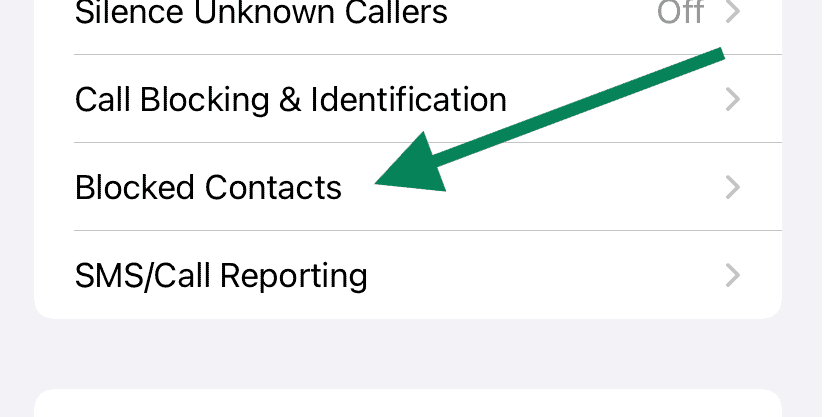
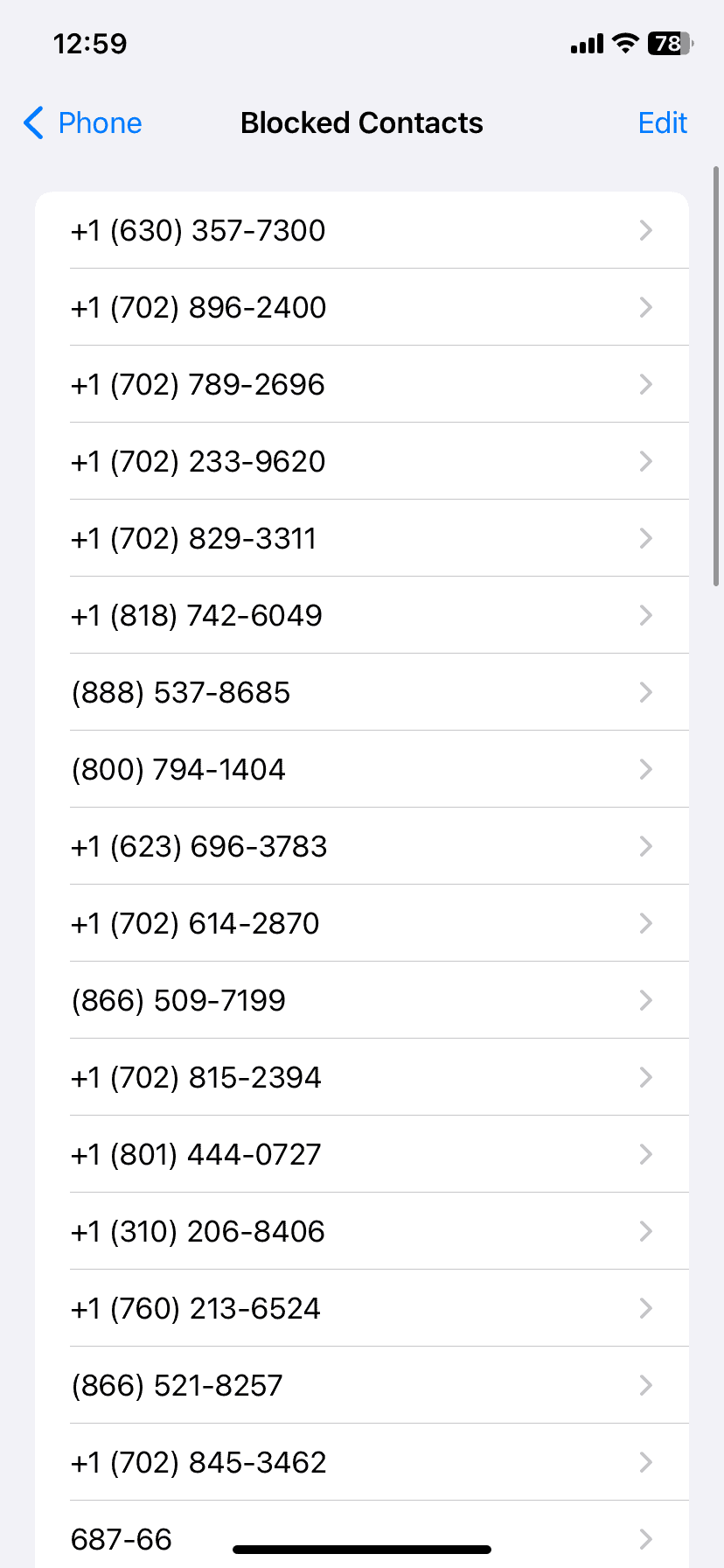
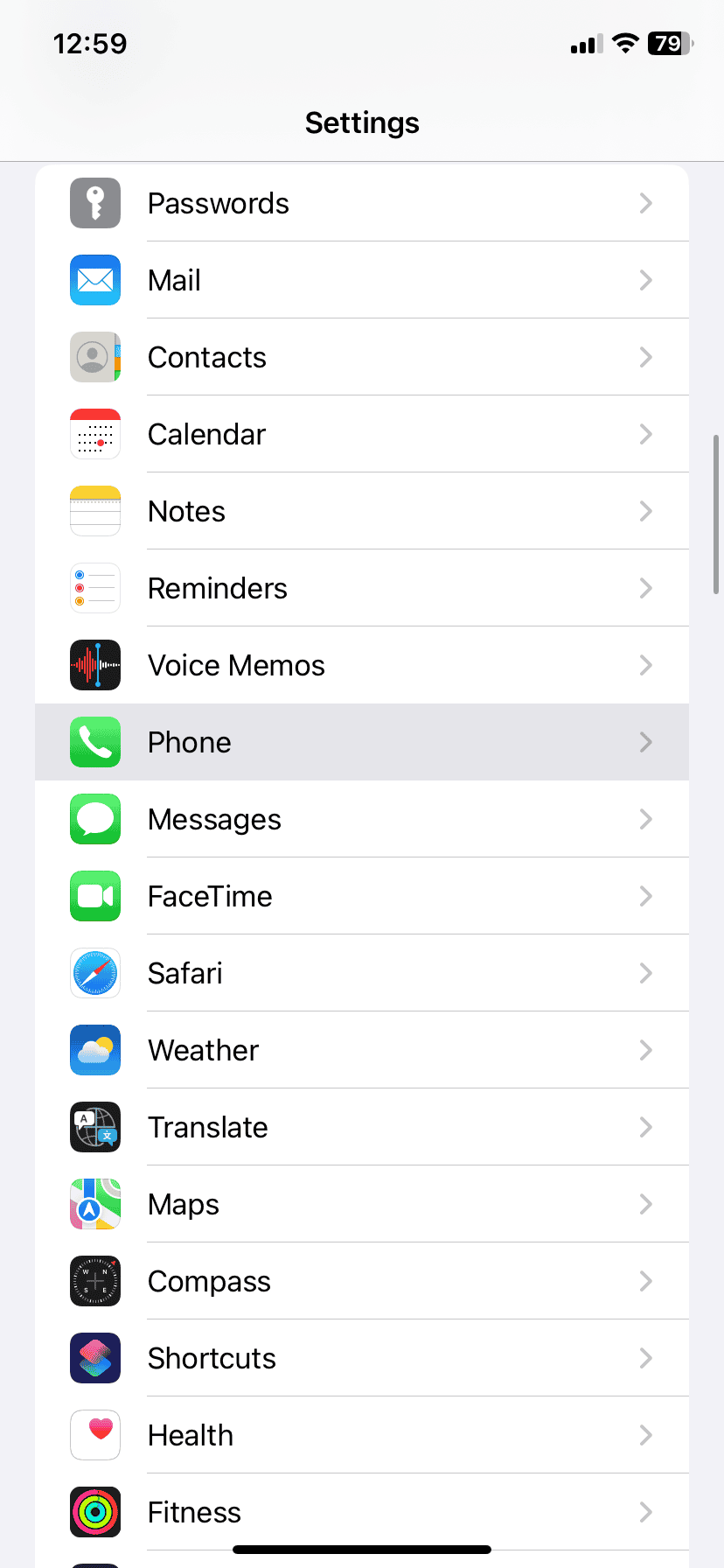
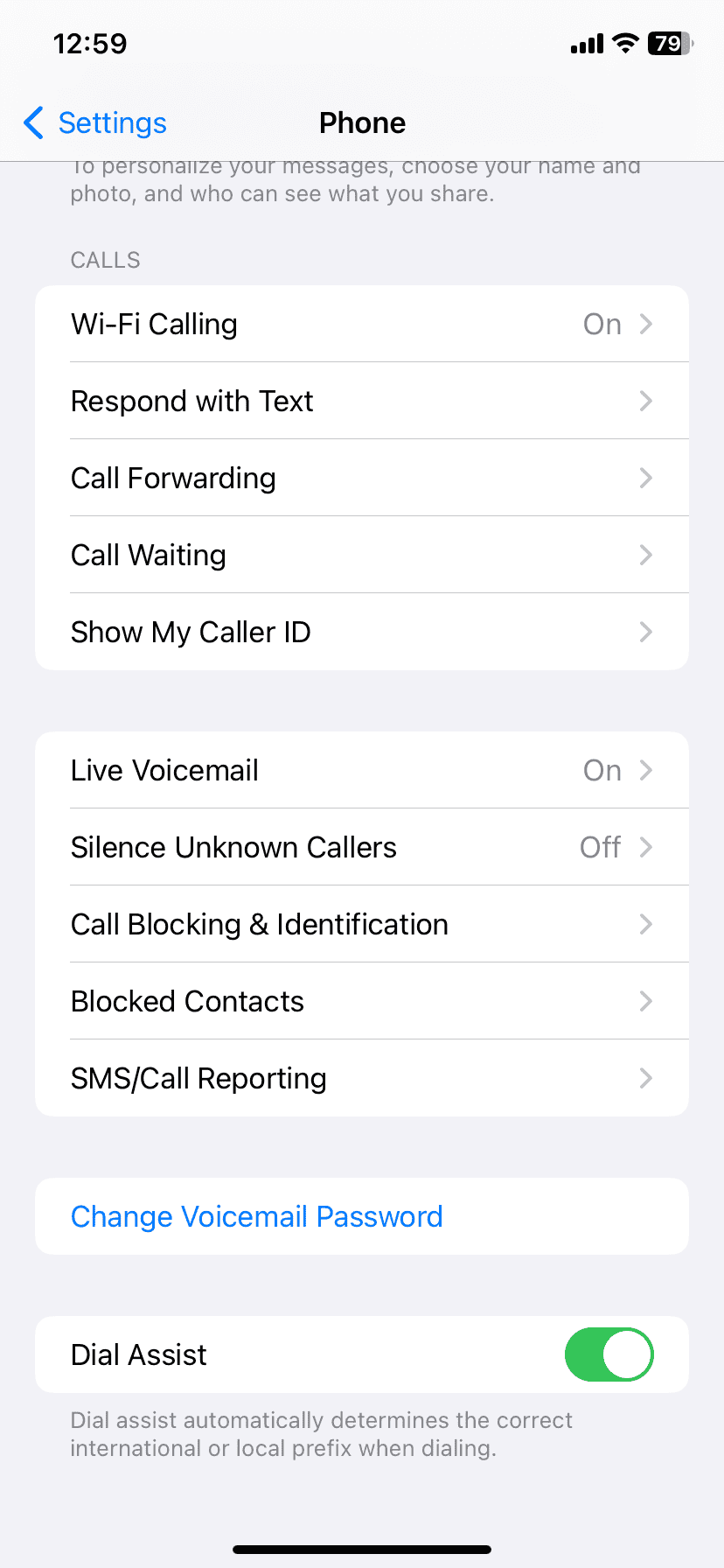
Managing blocked numbers on your iPhone is simple. The process helps you control who can contact you.To check blocked numbers go to Settings > Phone > Blocked Contacts.This list shows all the numbers you’ve blocked from calls texts and FaceTime.
You can also findblocked contactsthrough other apps. Open Settings and tap Messages Mail or FaceTime. Then select Blocked Contacts. These lists sync across apps so you’ll see the same blocked numbers.
Unblocking a number is easy. Swipe left on the contact in the Blocked Contacts list. Tap Unblock. The person can now reach you again through calls texts and FaceTime.
Unmasking the Blocked: Locating Blocked Numbers on Your iPhone
Through the Phone App
The Phone app is the primary hub for managing calls and contacts on your iPhone, and that includes blocked numbers. Here’s how to access your blocked list:
Within the Messages App
If you’ve blocked someone from texting you, their number will also appear in the Messages app’s blocked list:
Checking in FaceTime
Blocked contacts are also prevented from reaching you through FaceTime. Here’s how to view them:
Points to Remember
Table: Checking Blocked Numbers on iPhone
Key Takeaways
Navigating iPhone’s Blocking Features
iPhone users can manage blocked numbers to control who can contact them. The Settings app offers easy access to blocking features across various communication services.
Accessing Blocked Numbers via the Settings App
Open the Settings app on your iPhone. Tap “Phone” then “Blocked Contacts” to see your list of blocked numbers. This shows all phone numbers you’ve blocked from calling or texting you.
To view blocked numbers for other services:
You can add new numbers to block or remove existing ones from these lists.
Understanding Blocking on Different Services
Blocking works differently across iPhone services:
Blocked contacts can still leave voicemails but you won’t get notifications. Their messages go to a separate list in the Messages app.
Managing Blocked Contacts
To unblock a number swipe left on it and tap “Unblock” in any blocked list. you may also tap “Edit” then the red circle next to a number to unblock it.
Blocking doesn’t delete contacts from your address book. It just stops their communications from reaching you. Blocked contacts aren’t told they’ve been blocked.
To block a new number:
You can also block unknown numbers that call you from the recent calls list.
Frequently Asked Questions
Managing blocked numbers on an iPhone is straightforward. Users can view blocked contacts, handle missed calls, and unblock numbers easily.
How can I view the list of contacts I have blocked on my iPhone?
Go to Settings > Phone > Blocked Contacts. This shows all blocked phone numbers and contacts. You can also check blocked contacts in Settings > Messages > Blocked Contacts or Settings > FaceTime > Blocked Contacts.
Is it possible to see missed calls from numbers I have blocked on my iPhone?
No. Blocked numbers can’t leave missed call notifications. The call issilently rejected. Your iPhone won’t show any trace of these attempted calls.
What is the procedure for unblocking a number on my iPhone?
Open Settings > Phone > Blocked Contacts. Find the number you want to unblock. Swipe left on it and tap Unblock. The contact can now call text and FaceTime you again.
Can I retrieve messages received from a blocked number on my iPhone?
No. Messages from blocked numbers don’t arrive on your iPhone. They’re stopped before reaching your device. There’s no way to see or recover these messages later.
What are the steps to access blocked contact information on an iPhone?
Go to Settings > Phone > Blocked Contacts. Tap a blocked contact to see their details. This shows their name phone number and any other saved info.
What occurs when an incoming call is received from a blocked number on an iPhone?
The call is silently rejected. Your phone doesn’t ring vibrate or show any notification. The blocked caller hears a few rings then goes to voicemail. You won’t know they tried to call.