Keeping audio messages on your iPhone can be quite simple yet crucial.To save audio messages, open the Settings app, tap Messages, then under Audio Messages set Expiration to Never. This way, you won’t have to scramble to find an important message later.
Users often lose audio messages behind newer ones. You can keep them by tapping the “Keep” button when playing back each audio message. This will save individual messages forever, instead of letting them auto-delete.
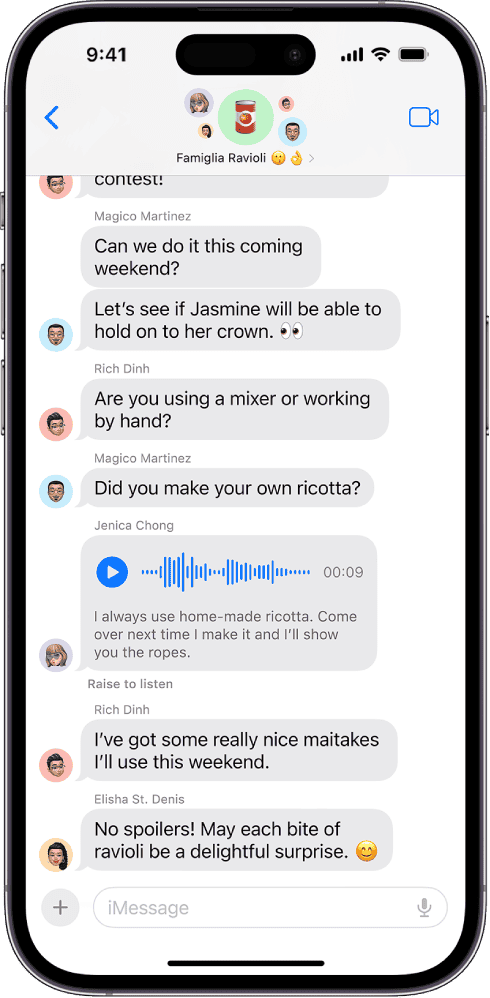
There’s also another method. you may copy and paste the audio message into the Notes or Files app. This way, it’s stored safely outside of your message threads, making it easier to find.
Audio Messages: Keep Them Around!
Audio messages are a fun and convenient way to communicate, but they often vanish after a short time. This guide will show you how to keep audio messages from disappearing on your devices.
iPhone and iPad
To keep audio messages on your iPhone or iPad:
Now, your audio messages won’t expire, and you’re able to enjoy them whenever you want.
On a Mac, audio messages don’t expire automatically. However, if you delete a message thread, you will lose the audio messages within it. To preserve audio messages, refrain from deleting conversations or save them elsewhere.
Alternative: Save Audio Messages
If you want to keep specific audio messages separate from the conversation, you can save them. On an iPhone or iPad:
This will save the audio message to your Voice Memos app for easy access.
The method for keeping audio messages varies depending on your messaging app and Android version. Look in the settings of your specific app for options like “Save audio messages” or “Don’t delete audio messages.”
By following these simple tips, you’re able to ensure that your audio messages stick around for as long as you need them.
Key Takeaways
Understanding Audio Messages on Apple Devices
Apple devices allow users to send and receive audio messages easily. This feature is simple yet has a few settings that users should know about.
The Basics of Audio Messages
Audio messages let users record and send voice messages through the Messages app.iMessagesupports this feature, making it easy for iPhone, iPad, and Mac users to communicate. When receiving an audio message, users can tap to play it. They can also fast-forward or rewind by sliding left or right.
Messages can be saved by tappingKeep. This option ensures that the audio message remains in the conversation until manually deleted. UsingVoice Memosis another option to record and share audio notes, but it’s a separate app from Messages.
Audio Message Settings and Expiry
By default, audio messages expire after two minutes. This setting helps save storage on the device. Users can change this in theSettings app. Go toSettings > Messagesand find theExpireoption under the Audio Messages section. Users can choose to set it toNeverif they wish to keep their messages indefinitely.
Messages that are manually kept by tappingKeepwon’t expire, even if the default setting is timed. For syncing across devices, make sure iMessage is set up using the same Apple ID. This ensures that kept messages stay accessible across iPhone, iPad, and Mac.
Preserving Audio Messages
Keeping audio messages on your iPhone helps you store important conversations. It involves a few steps to save the messages and manage the storage they use.
How to Save Audio Messages
To save an audio message on your iPhone, open theMessagesapp. Find the audio message you want to keep and tap theKeepbutton below it. This prevents it from being automatically deleted after two minutes.
You can also change the settings to keep all audio messages. Open theSettingsapp, then tapMessages. Scroll down toAudio Messagesand tapExpire. SelectNever. This way, all sent and received audio messages are saved in your conversations indefinitely.
Using theVoice Memosapp can also help. you’re able to record and save important audio directly to the app. This allows you to access and manage them easily without worrying about them being deleted.
Managing Storage for Audio Messages
Audio messages can take up a lot of storage space. It’s important to manage this space to keep your device running smoothly. To check how much storage your messages are using, go toSettings>General>iPhone Storage. Here you can see how much space your messages, videos, and attachments are using.
If space is an issue, consider deleting old audio messages. Tap and hold the message, then selectDelete. Alternatively, you can save important messages to yourNotesorVoice Memosapps before deleting them fromMessages.
Storing messages on your computer is another option. Connect your iPhone to your computer, open theMessagesapp on your Mac, and save the audio files. This method lets you keep your important messages while freeing up space on your iPhone.
By following these steps, you can easily keep your audio messages while managing your storage efficiently.
