Having the weather always in sight can be very convenient, especially when planning your day around the conditions outside. Windows users can benefit from this functionality, as both Windows 10 and Windows 11 offer ways to display weather information directly on the taskbar. This feature allows real-time access to the current weather, temperature, and forecasts with just a glance at the bottom of the screen.
Showing The Weather on Your Taskbar
Want to see the weather at a glance without opening an app? Windows makes it easy to display the current conditions right on your taskbar. Here’s how:
Windows 11
Windows 10
Windows 10 doesn’t have the same Widgets panel as Windows 11, but you can still add a weather icon to your taskbar.
Troubleshooting
If you’re having trouble getting the weather to appear on your taskbar, try these tips:
With these steps, you can easily add the current weather conditions to your taskbar for quick and easy access.
How to Show Weather on Taskbar: Table Guide
Important Notes:
Setting up the weather widget on the taskbar is a straightforward process. In Windows 10, the feature is part of the ‘News and interests’ taskbar widget, while in Windows 11, it is accessible through the widgets board. Users can customize their experience by selecting the information they want visible and adjusting the appearance to their preferences. Whether you want just a temperature snapshot or a full forecast, you have control over what weather details are shown.
Key Takeaways
Setting Up Weather Display
Displaying weather on your taskbar helps keep you informed about the local climate without interrupting your workflow. Windows users can add a weather icon to the taskbar for quick access to the forecast. The process differs slightly between Windows 10 and Windows 11.
For Windows 10
First, ensure your system is up to date by checking for updates in theSettingsapp. Once updated, right-click on an empty space on the taskbar. From the menu that appears, hover overNews and intereststhen selectShow icon and textfor the full experience. If you prefer a minimal look, chooseShow icon only. To remove the weather, simply right-click the taskbar again, selectNews and interests, and then chooseTurn off.
For Windows 11
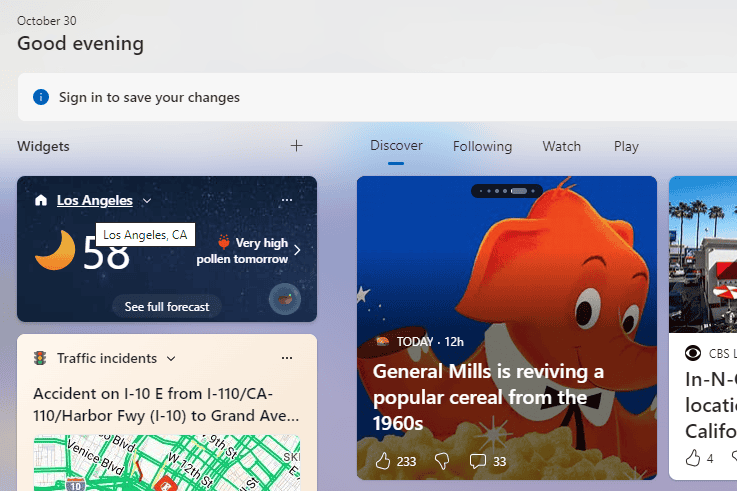
In Windows 11, the weather feature is part of the Widgets. To add weather to your taskbar, right-click an empty area on the taskbar and selectTaskbar settings. Toggle theWidgetsoption to on. To remove it, switch the Widgets option off. If you wish to only hide the Weather card inside the Widgets board, open the Widgets board and manage your interests using your Microsoft account to personalize your news and weather content.
Remember to position your taskbar at the bottom of the screen as certain features like Widgets may not be available if the taskbar is aligned differently.
Customizing Weather Information
Weather apps and widgets provide valuable information right at your fingertips. This section will guide you through customizing that information so that it fits your needs and preferences perfectly.
Adjusting the Settings
To change weather settings on your device, start by right-clicking on the taskbar. Choose the ‘Weather’ or ‘News and Interests’ widget to see options for customization. Here, you can show or hide the weather widget as desired. If you prefer to see just the weather icon without extended text, select ‘Show Icon Only’.
Enhancing User Experience
For an optimal experience, set the weather widget to open only when you hover over it. This prevents it from popping up uninvited and potentially interrupting your work. You can do this by accessing the taskbar settings and selecting ‘Open on hover’. Make sure your system has the latest Windows Web Experience Pack to ensure smooth performance.
Incorporating Additional Information
Apart from weather, the widget can display traffic, sports, finance, and other info cards. If you want to edit the location for your weather forecast or switch between Celsius and Fahrenheit, click into the weather card and personalize these settings. The weather bar also provides current temperature and description, so whether it’s sunny or cloudy, you’ll be prepared. Remember, these information cards are part of the ‘News and Interests’ widget in the taskbar, and you can refresh their content to keep up with the latest updates.
Frequently Asked Questions
When it comes to displaying the weather on your taskbar, common questions arise. This section aims to provide clear answers and straightforward instructions for the most frequently asked questions.
How can I enable the weather widget on the Windows 10 taskbar?
To enable the weather widget in Windows 10, right-click on the taskbar. Select “News and interests,” and choose “Show icon and text” from the options. If the widget isn’t available, make sure to update Windows to the latest version where this feature is present.
What steps are required to display the weather on the taskbar in Windows 11?
For Windows 11, right-click an empty space on the taskbar and choose “Taskbar settings.” Scroll to “Taskbar items” and toggle the “Widgets” option to “On.” This will show the Weather widget along with other widgets on your taskbar.
Can the weather forecast be shown on a laptop’s taskbar, and if so, how?
Yes, you can display the weather forecast on a laptop’s taskbar. Follow the same methods as desktops for both Windows 10 and Windows 11. Ensure your laptop’s operating system is updated to access these features.
What are the options to have weather updates specifically on the right side of the taskbar in Windows 11?
Windows 11 does not offer the flexibility to move taskbar items to the right side. Widgets, including weather updates, will appear on the left side of the taskbar. Future updates may offer more customization.
Why is the weather widget not appearing on my Windows 11 taskbar, and how can I fix it?
If the weather widget doesn’t appear on your Windows 11 taskbar, check if widgets are enabled in the “Taskbar settings.” If it is enabled but still not visible, try restarting your device or checking for updates that may include fixes for widget issues.
Is there a way to add a weather temperature display to the Windows 10 taskbar without additional software?
Windows 10 includes a built-in feature that shows weather information. However, if you want temperature-specific displays without adding new software, you might need to change settings within the “News and interests” to show the weather icon only. Otherwise, third-party software would be necessary for more specific customizations.
