Mac users often rely on Spotlight Search for quick access tofiles, apps, and documents, but slow performance can be frustrating.Rebuilding the Spotlight index can often resolve these inefficiencies, making search results faster and more accurate. By adjusting Spotlight settings, users can optimize their Mac’s performance.
Deselecting unnecessary Spotlight search options can make a considerable difference. Reducing the number of indexed items allows Spotlight to focus on what’s important to you. Adjusting these settings is simple and can significantly speed up search times.
Another fix involves regularly cleaning and maintaining your Mac. This could involve deleting unused files or using tools to clean your system. Taking these steps not only improves Spotlight’s speed but also enhances the overall performance of your Mac.
Boosting Your Mac’s Spotlight Search Speed
Why Is Spotlight Slow?
Spotlight might be slow due to a few reasons. It could be indexing a large number of files, or there might be issues with your Mac’s storage. Let’s explore some fixes to get it running smoothly again.
Quick Fixes
Advanced Solutions
Maintenance Tips
By following these tips, you can improve your Mac’s Spotlight search speed and enjoy a smoother user experience.
Key Takeaways
Understanding Spotlight Search
Spotlight Search is a powerful feature in macOS that allows users to quickly find files, applications, emails, and other data on their Mac by indexing content and metadata from various sources.
Components of Spotlight
Spotlight consists of several key components. The most important is theSpotlight Index. This index maintains a database of files, apps, emails, and folders. It stores data about their names, metadata, and content. This index helps Spotlight return search results quickly and accurately.
Another vital part isCoreSpotlight. It integrates with individual applications to help them provide relevant information to Spotlight. This ensures apps like Mail and Notes can show results during a search.Sirialso interfaces with Spotlight, enhancing search functionality through voice commands.
Spotlight Search Functionality
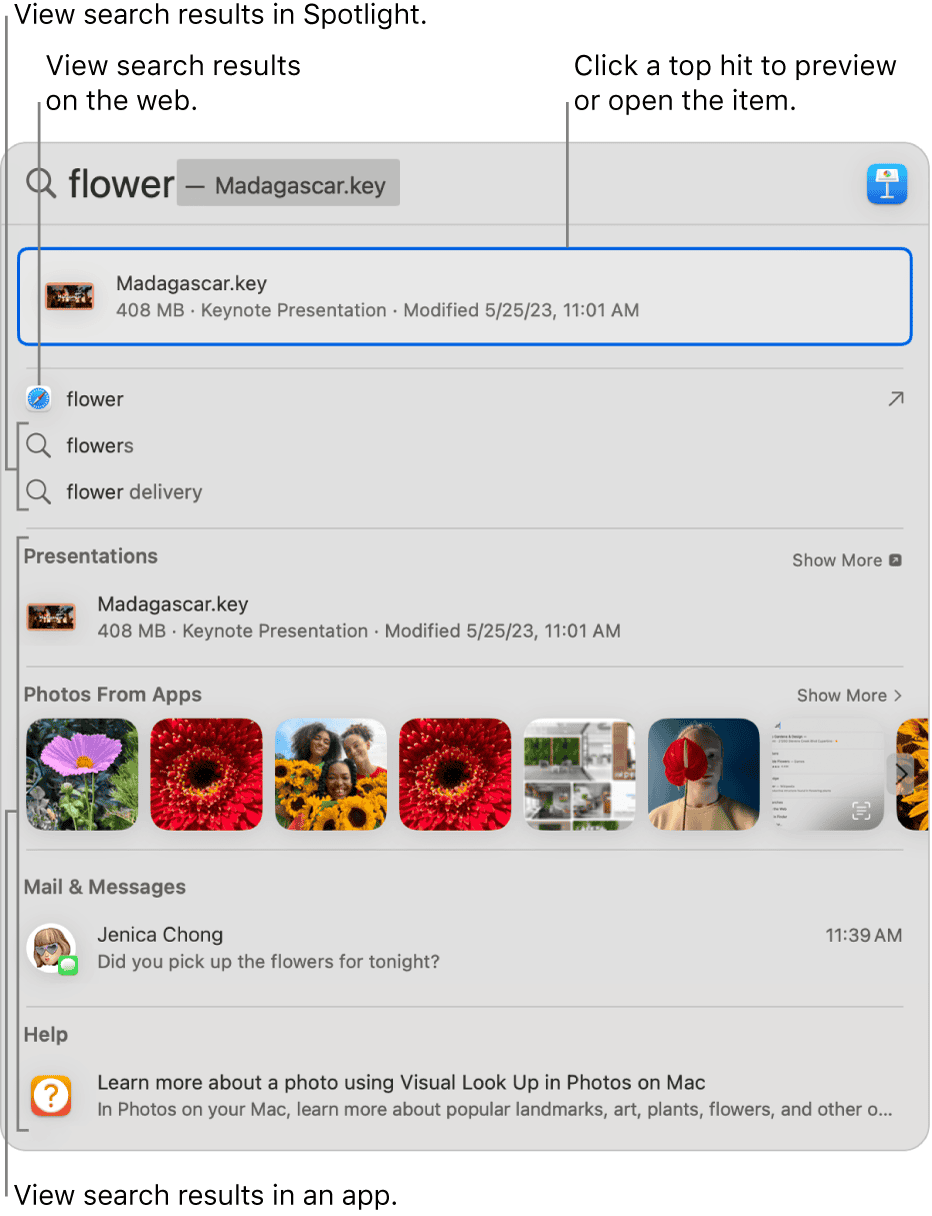
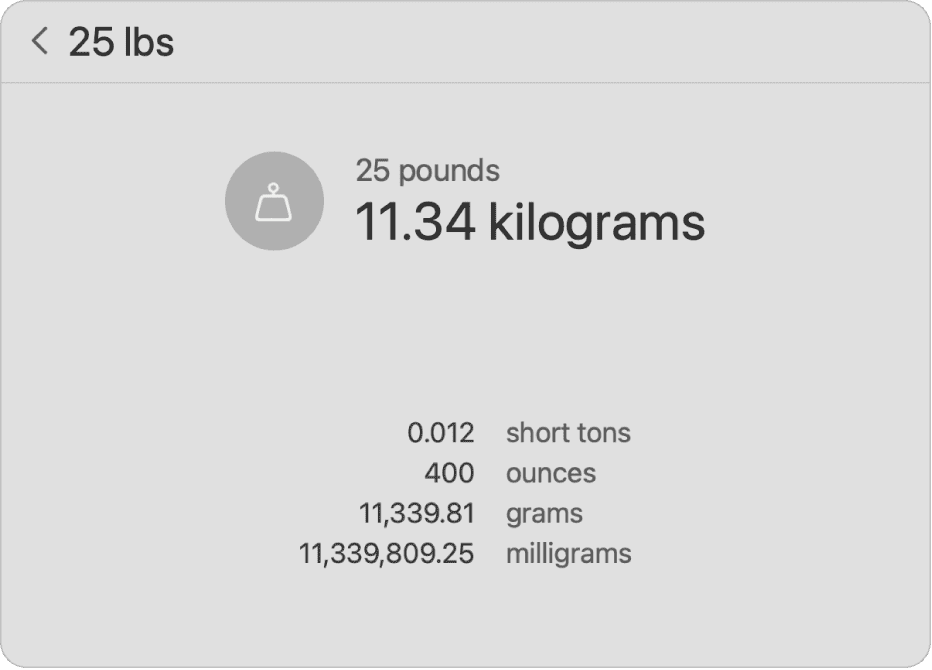
Spotlight’s functionality is comprehensive. Users activate it by clicking the magnifying glass icon or pressing Command-Space. Typing a query brings up instant search results based on the Spotlight Index.
It can find files, launch apps, perform web searches, and more. Spotlight searches through documents, metadata, and emails.macOS Venturaintroduced improvements like more precise search results, making it more efficient.
Users can customize Spotlight settings to narrow searches to specific folders or file types. This customization helps avoid cluttered results and improves search speed. Rebuilding the Spotlight Index is often necessary if searches become slow or unresponsive. This process refreshes the index, resolving many common issues.
Troubleshooting and Optimizing Spotlight Search
Having a slow Spotlight search on your Mac can be quite frustrating. Below, you’ll find effective ways to troubleshoot common issues and steps to optimize the search performance.
Common Issues and Solutions
One common issue with Spotlight is slow indexing. To resolve this, users can try reindexing the Spotlight database. OpenSystem Settingsfrom the Apple menu, then navigate toSpotlight. Add and then remove the disk from thePrivacytab to force Spotlight to reindex.
Another useful method is running maintenance scripts. This can help fix various glitches affecting the system. Tools likeCleanMyMac Xoffer built-in maintenance scripts that can be useful for this purpose.
In some cases, customized search settings can also be an issue. If the search results are too broad, you may narrow down what Spotlight indexes. Go toSystem Settingsand selectSpotlightto choose which locations and data types to index.
Improving Search Performance
Improving Spotlight search performance often starts with rebuilding the index. This can be done using theTerminal. Open Terminal and typesudo mdutil -E /to erase and rebuild the index. This process might take some time but usually results in faster searches.
Another tip is to optimizeSystem Preferences. Disabling unnecessary categories in theSpotlightpreferences can make searches faster. For example, uncheck items likeFontsorBookmarksif they are not needed.
Lastly, restarting your Mac after making these changes can help apply the optimizations effectively. A simple restart can clear temporary files and refresh system processes, potentially speeding up Spotlight searches.
